Tax season file sharing checklist for accountants

A tax season file sharing checklist helps you ask each client for the right documents, see what is still missing and return completed files without mixing them with intake. Start with a client-specific list, request files against your own dates, follow up on gaps and deliver finished work separately.

Build a client-specific document list
Start with the work you have agreed to do for that client. Write the list around that engagement instead of sending every client the same broad request. Let your firm’s own tax-preparation process and professional guidance determine which records apply; this checklist is about organizing file intake, not deciding a client’s tax obligations.
Group the list into clear statuses your team understands, such as requested, received, needs follow-up and not applicable. Include a short description beside an item when the client may not know what you mean. Keep the labels consistent so a colleague can see what remains without interpreting a long email thread.
Give each checklist item a simple name you can repeat in a reminder. If a client asks what is missing, you can point to the specific item rather than restating the whole list.
For tax-document collection details, use the focused guide on how to collect tax documents from clients securely. Keep the checklist itself matched to the client and the engagement you are handling.
Use the tax season file sharing checklist to request files
Create a separate file request for each client when you need a distinct list or deadline. Give the request a recognizable title and put the requested items and submission instructions in its description. Tarkle’s request form has a Title field and a Description field. Choose the destination folder that fits your filing structure. Open the workspace-level Requests page to review requests and uploads.
Tarkle File requests lets you receive files from clients through a request link. A client can open a public request link without signing in, then enter a name and email before submitting files. For the steps to collect client uploads, see how to collect files from clients.
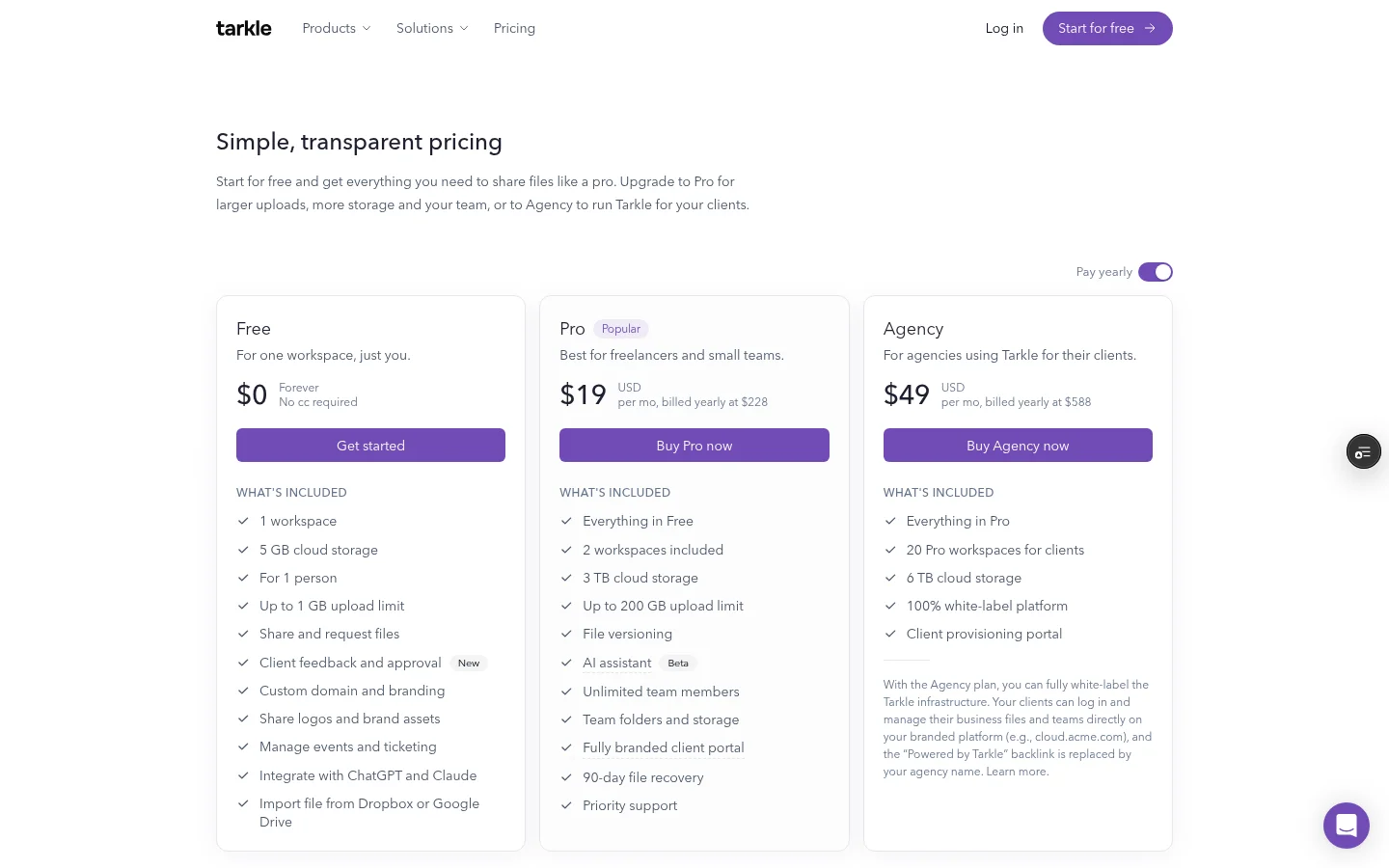
The Free plan includes file requests. The Free plan allows one active request form at a time, so consider how many client requests you need open together before setting up the season around multiple simultaneous forms.
Write the action and the destination in the request description. Tell the client where to upload each requested item and which channel to use for questions about the list.
Set a deadline and make follow-up visible
Choose a request deadline that gives the client time to respond before your internal review date. The request form sends the selected calendar date as an ISO timestamp, and the request closes once that saved time has passed. An expired request shows an expired state, so include the date in your instructions as well. The request deadline and upload-limit feature explains the controls, and link expiration covers dates for transfers and requests.
Make a follow-up plan when you send the link. Add a reminder before your own review date, then update the checklist when a document arrives or a client tells you it is unavailable. Avoid treating silence as completion: mark what you have, what is still outstanding and what needs a conversation.
Put the next follow-up date beside the missing item, not only in a general calendar reminder. That keeps the reminder tied to the exact request you need to revisit.
Keep each client’s files together
Use a consistent folder structure for the client and the relevant engagement or period. The request form lets you choose a destination folder, and Tarkle creates the request folder beneath that destination. Match the request title to the client and period so your team can recognize its intake folder. Keep collected files distinct from the work you are preparing to return.
Decide who on your team is responsible for marking checklist items received. When a client sends only part of the list, mark what arrived and follow up on the remaining items rather than treating the request as finished.
Before creating a request, check that the client name and period in its title match your folder naming pattern. Consistency makes later searches less dependent on memory.
Return completed files through a separate transfer
When work is ready to send, use a transfer rather than adding the completed files to the client’s intake request. Tarkle’s File sharing lets you send files and folders with a link. Open the workspace-level Transfers page to review transfers.
Set a password and expiry date when they fit the way you are delivering the work. Tarkle offers password and expiry settings on file sharing. The password gate applies to recipients opening a transfer link, while workspace members can open the transfer without passing that gate. Choose an expiry that matches the time your client needs to receive the files, and share the password separately when your process calls for it.
Use a delivery message that names the files and says what action the client should take next. Keep that note separate from the intake checklist so the client can distinguish new deliverables from documents they still need to send.
Keep file collection separate from tax preparation
A file-sharing process can organize requests, submissions, follow-up and delivery. It does not decide which documents a client needs for a tax matter or replace your tax-preparation work. Use the tax and professional guidance that applies to your practice for those decisions; use this checklist to keep the file exchange clear.
This article is written for the 2027 tax season. Review it before the next filing season and update the year-specific checklist or remove the dated framing if the process no longer fits.
Set up the intake before clients start sending
Write a client-specific list based on the work you are handling.
Choose a folder destination and a recognizable title for each request.
Add the request instructions and a deadline, then set reminders for missing items.
Keep collected files distinct from completed files, and return finished work through a transfer.
Compare plan details before choosing a workflow for multiple client requests.
What to remember about Tarkle
Tarkle’s File requests feature supports client intake. Tarkle’s File sharing feature supports returning completed files. Your firm sets the tax-preparation checklist; this article focuses on keeping the file exchange organized. Start for free.