Free file sharing for small business: what to check

When comparing free file sharing for small business, check file size, monthly sending, storage, client uploads and who needs access. A free plan can cover routine work when its limits fit the way you share. The table below summarizes the Free plan limits to compare with your work.
Free file sharing for small business starts with your sending pattern
Start with the job you repeat most: sending finished work, collecting files from clients, or keeping a shared library. Then compare the limits that affect that job instead of choosing by the word “free.”
Tarkle's file sharing page has transfer details. The file requests page explains upload links.
Pattern | What to check | Free plan |
|---|---|---|
Occasional sends | Maximum file size and monthly transfers | Up to 1 GB each; 15 transfers a month |
Repeated client intake | Active requests and monthly submissions | 1 active request; 50 submissions a month |
Shared working library | Storage and account setup | 5 GB of storage; 1 workspace for one person |
Free's request limits are separate: the active-request allowance and monthly submission allowance are different checks. If several clients need to send documents at the same time, count how many open requests you need, not only how many uploads you expect.
Write the largest file size from your own recent work, then count how many transfers and request submissions you expect in a month. Compare your notes with the limit table before moving a recurring process to a free plan.
Check access control before you send
Decide who can open a link before it leaves your inbox. Ask every tool the same question: can you add a password, and can you pause a link once it has gone out? Tarkle lets you protect shared files with a password. You can also pause a transfer to mark it Disabled, and enable it again whenever you need it.
If you need a name and an email address before a download starts, look for an email gate. Tarkle's email gate asks visitors for an email address before the files open, and saves it as a contact.
Send a test link to yourself before sharing a file for a client. Check the password prompt and the page on a phone, so you know what your recipient will see.
Check expiry for the links you send
A link should stop opening the files when the work is over. For a transfer with an expiry date, Tarkle checks that date when someone tries to access it; after it passes, the transfer is expired. Set an expiry while creating the transfer, then choose a link expiration date that fits the delivery.
Transfers are created in your workspace: open Transfers and start a new one. For a link you need to pause before its expiry date, use the transfer's Disabled state and re-enable it when access should resume.
Set a date on transfers that contain time-sensitive material. A calendar reminder can also help you review links that should remain available beyond the original delivery window.

Check the recipient's experience
Ask whether the person on the other end needs an account. A transfer recipient does not need a Tarkle account to open a transfer. Send yourself a test link and open it on a phone to check the page your client will see.
For repeat work, ask whether the client can send files back. Anyone with a Tarkle file-request link can send files to a folder in your workspace without signing in. Open Requests in the workspace to create and manage those links.
If clients need a sign-in area for files you share with them, compare that job separately from one-off downloads. The client portal is listed on Pro. Access is enabled for each client contact. First-time enablement sends that contact an invitation. See how to invite a client to the portal for the steps.
Check storage for files you reuse
Sending and storing are different jobs. A transfer link shares a file with someone else; a library keeps working files you use again. Compare Tarkle's cloud storage with file sharing and cloud storage to decide which job matters more to your business.
Where Tarkle Free fits
Free includes one workspace for one person. It includes file sharing, file requests, client feedback and approval, and a custom domain. Shared files can be protected with passwords. The plans and pricing page lists Pro at $20/month and $200 billed yearly. Pro supports files up to 200 GB. Pro lists custom branding and the client portal.
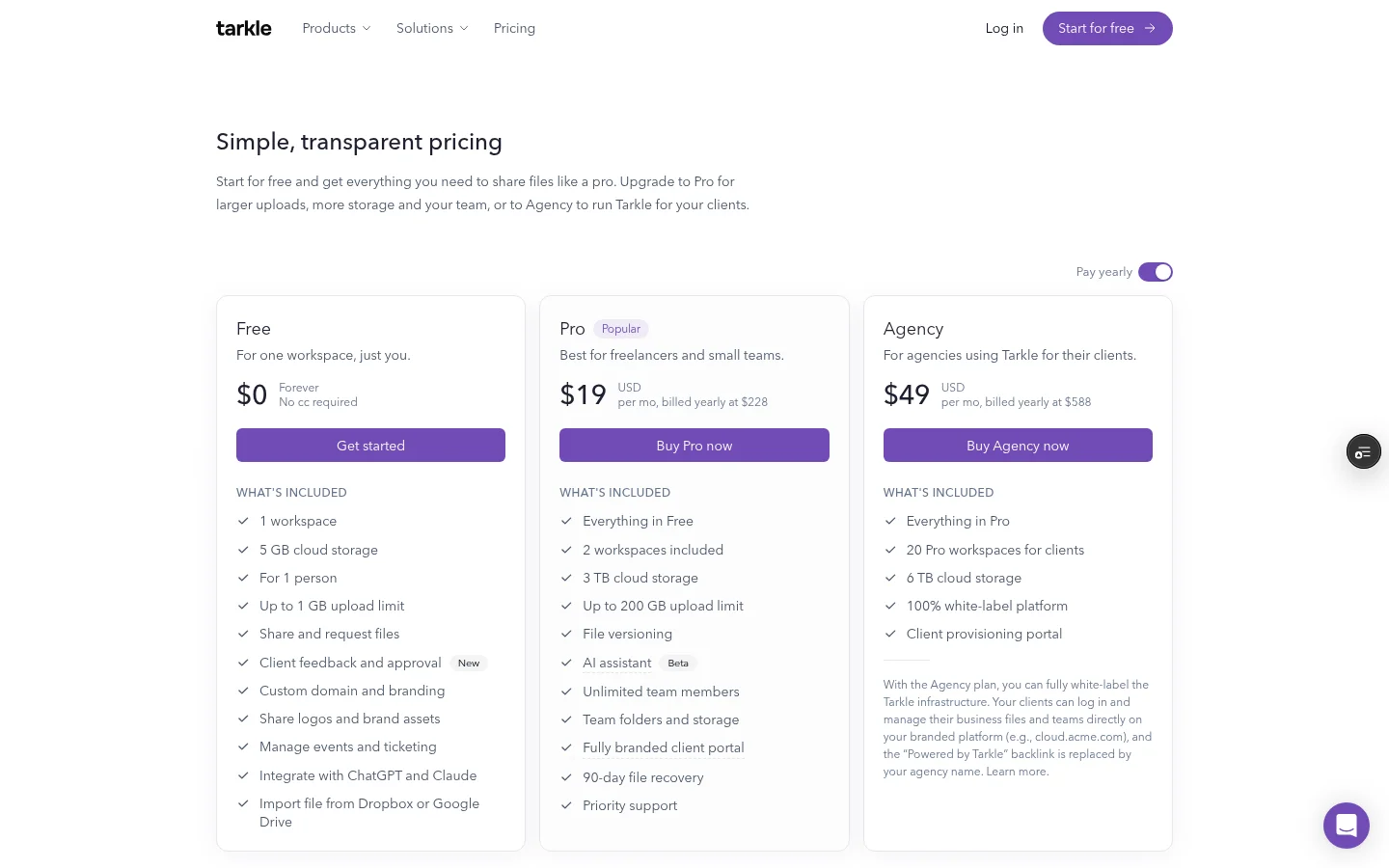
The Pro seat limit is five. If your team needs more seats, compare the plan details before you move shared work into one account. Portal access is enabled for each client contact rather than automatically applying to everyone who receives a transfer.
Free includes a custom domain. Pro lists custom branding. If branded pages matter to your business, compare those details with what your clients need to see. Custom domain explains the domain setting.
Match the file size, monthly sending, client requests, storage and team size you need with the plan details above. Tarkle's plans belong to the organization, not an individual workspace.
Questions small businesses ask
Can a client download a transfer without making an account? A transfer recipient does not need a Tarkle account to open a transfer link.
Can clients send files through a request link without signing in? Yes. Anyone with a Tarkle request link can upload files without signing in.
What should I check for recurring client uploads? Count how many active requests you need and estimate monthly submissions.
Does Free include a custom domain? Yes; one workspace custom domain is included with Free.
What to remember about Tarkle
Choose a free file-sharing plan by checking file size, monthly sending, request volume, storage and team access against your work. Tarkle has a Free plan; Start for free.