Files.com vs Tarkle: client sharing or managed transfer
Files.com vs Tarkle compares two ways to move files: Files.com publishes managed file transfer and automation, while Tarkle brings client sharing, file requests and a client portal together. Tarkle offers branded ways to send files to clients and collect files back.
What Files.com is
Files.com describes its service as managed file transfer, with SFTP, FTP and EDI transfers and automation. Its integration list also names FTPS, WebDAV, HTTPS, the Files.com REST API and AS2 on Power.
What Files.com offers
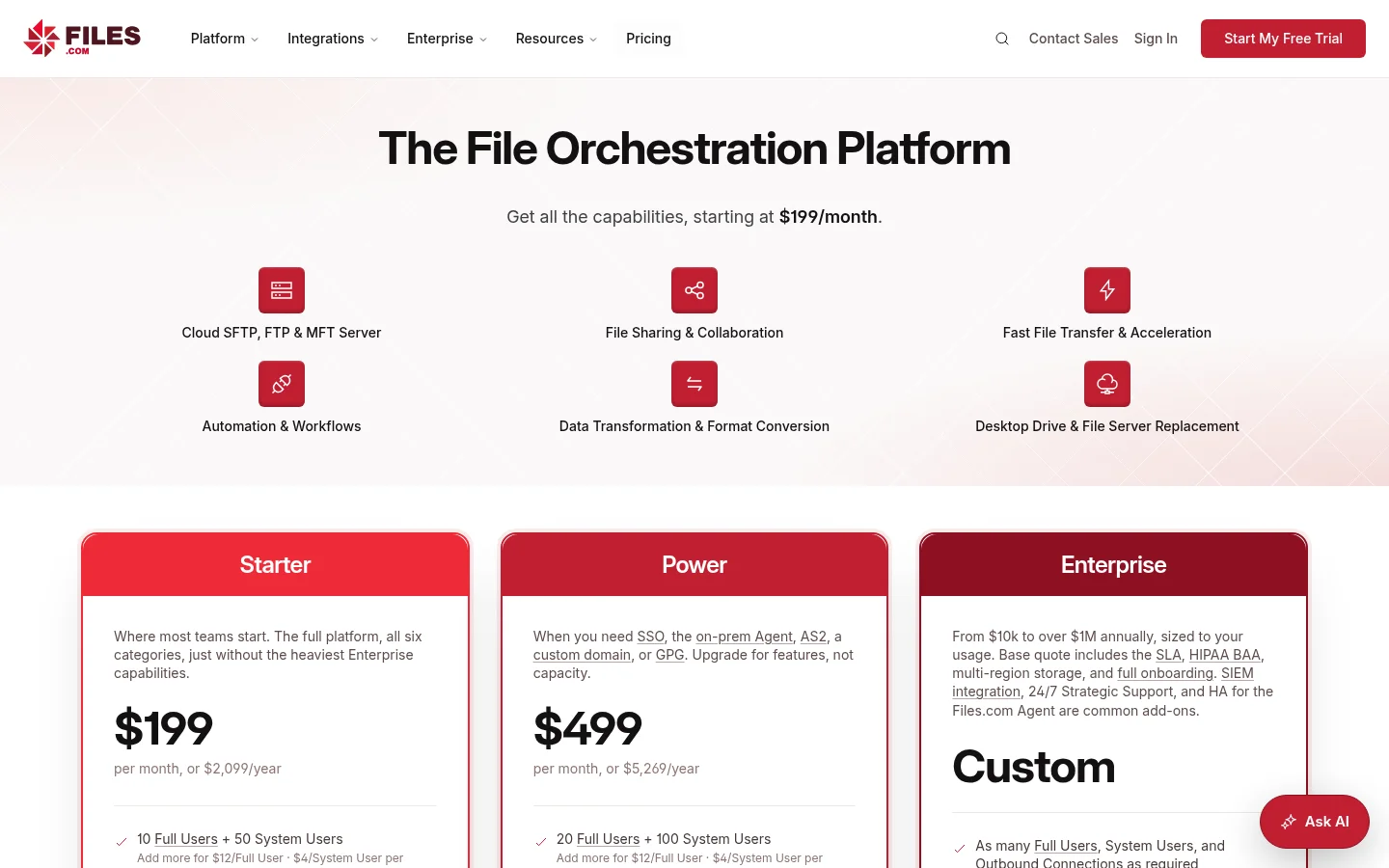
Files.com’s pricing page sets out its plans and included usage. The page lists Starter, Power and Enterprise; see it for the plan details.
Files.com Share Links provide access to selected files or folders for people outside the account. Its link security controls include passwords, invited-recipient access, expiration and visitor limits. Its Inbox feature offers a branded upload page or email address without requiring the outside uploader to sign up; each uploader sees their own submission. Files.com lists custom domain, custom SMTP, watermarking and clickwrap agreements on Power and above on its custom branding page.
What Tarkle does
Tarkle is built around client file sharing: a file transfer gives you a link to send selected files, and file requests bring uploads into a folder you choose. A client portal is available on Pro and Agency.
The portal’s Files view includes the files and folders shared with the contact, plus the contents of that contact’s own upload folder. The organization must be on Pro or Agency, the portal must be enabled for the workspace, and access must be enabled for the contact. See how the client portal works for the access details.
Public transfers can open without sign-in. A transfer restricted to a client organization requires a signed-in client whose organization matches. Password or email gates may add an access step.
Free is $0 and includes one workspace for one person, 5 GB of storage and files up to 1 GB. Pro is $20 per month or $200 billed yearly; Agency is $50 per month or $500 billed yearly. See Tarkle’s plans and prices for the full plan details.
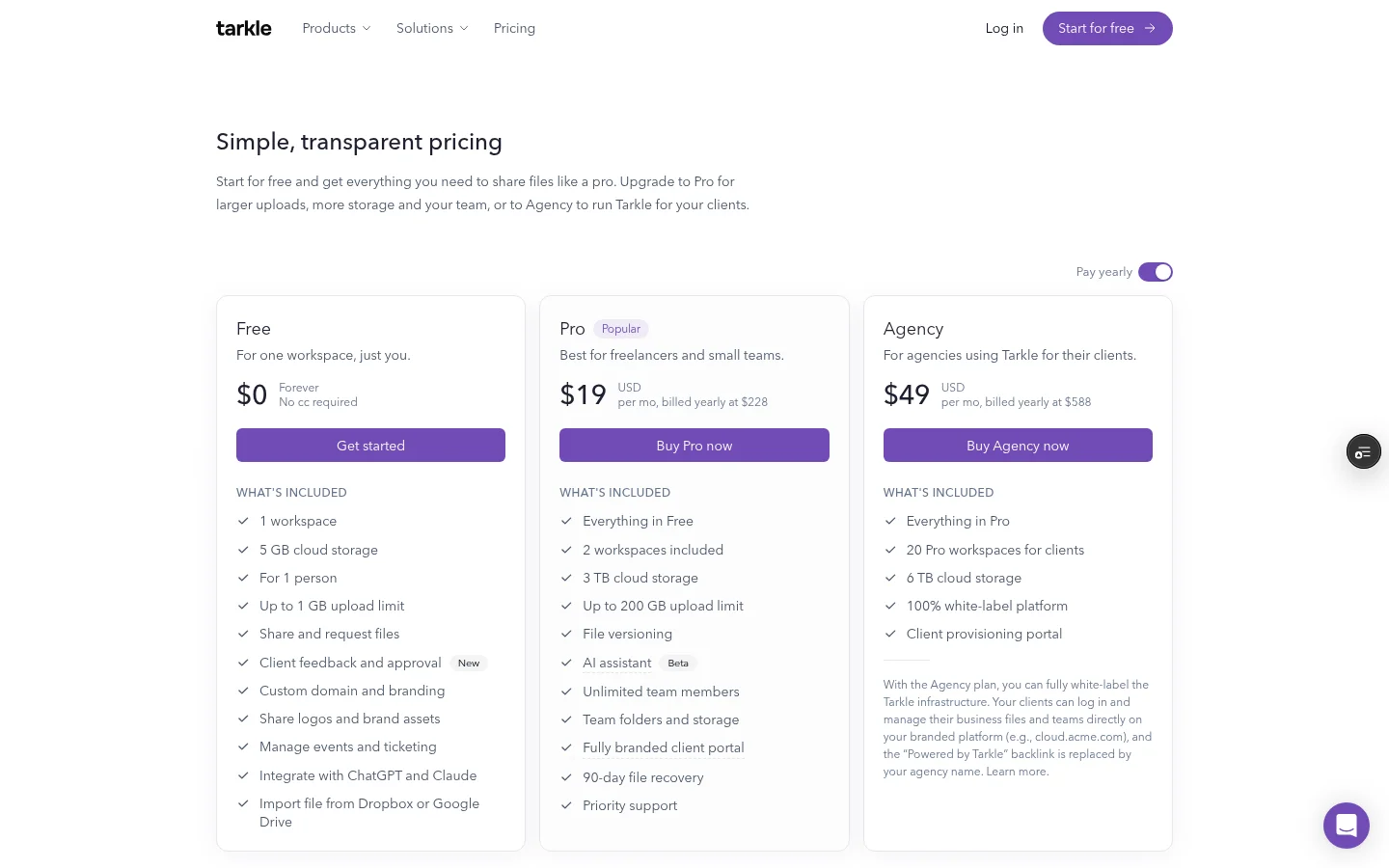
Agency includes 10 workspaces for clients. Its white-label platform lets clients sign in on your agency domain and see your agency name. The domain applies to client-facing workspaces, not Tarkle’s marketing or documentation pages. Pro and Agency include custom Branding.
On Pro, you can remove “Powered by Tarkle” on your own domain when the workspace’s Branding setting is off. The attribution remains on Tarkle-owned domains and Tarkle page requests.
Files.com vs Tarkle side by side
Job | Tarkle | Files.com |
|---|---|---|
Main workflow | Client file sharing, file requests and a client portal | Managed file transfer, automation and external file sharing |
Collecting files | Requests save uploads to a folder you choose | Inboxes accept uploads through a branded page or email address |
Client visibility | Portal Files shows shared items and the contact’s own uploads | Each Inbox uploader sees their own submission |
Sharing access | Public transfers can open without sign-in; organization-restricted transfers require a matching signed-in client | Share Links can use passwords, invited recipients, expiry and visitor limits |
Branding | Pro can remove Powered by on your own domain; Agency adds client-facing white label on your domain | Power and above include custom-domain branding tools |
Plans | Free, Pro and Agency | Starter, Power and Enterprise |
Why teams use Tarkle for client sharing
For client file sharing, use a transfer link to send selected files, a request to collect uploads in a chosen folder, and the portal to show shared files and the contact’s own uploads. Agency also offers a white-label platform for clients on your domain.
Files.com publishes protocol-based transfers and automation alongside file sharing. Tarkle focuses on branded client sharing, file requests and portal access. The useful comparison is the work your team does: client file sharing and collection, system-to-system transfers, or both.
Write down the file exchanges your team handles in a typical week, then compare each one with the transfer, request and portal details above.
Switching from Files.com to Tarkle
Start with one task sharing files with a client. Create a transfer from Transfers, then follow how to create a file transfer. If the client needs to send files back, create a request from Requests and use the file request guide.
For repeat access, enable the portal for the workspace and the contact. The portal guide linked above explains what the contact sees.
Test the client side with one transfer and one file request before repeating the setup for other clients.
FAQ
What is Files.com used for?
Files.com describes managed file transfer and automation for SFTP, FTP and EDI, alongside sharing links and upload inboxes. Its managed file transfer page describes the transfer workflow.
Can Files.com share files with people outside an account?
Yes. Files.com Share Links provide access to selected files or folders, and its Inbox feature accepts uploads from outside users without requiring them to sign up.
Does Tarkle include a client portal?
The portal’s Files view includes files and folders shared with a contact and the contents of that contact’s own upload folder.
Do Tarkle recipients need an account?
Public transfers can open without sign-in. A transfer restricted to a client organization requires a signed-in client whose organization matches, and password or email gates may add an access step.
How can I try Tarkle with a client file?
Free includes file sharing and file requests, and files up to 1 GB. Start for free.