How to audit old file sharing links

Audit old file sharing links with a short inventory that shows what each share is for, who owns it and whether it still needs to work. Review old client shares, keep the links that still have a clear purpose, and set an end date or turn a transfer off when it no longer needs to stay open.
An old link is not automatically a problem. The point of a review is to replace guesswork with a decision you can explain: keep it open, set an expiry, or disable it.
Start with one inventory of client links
Gather the places your team uses to share work: transfer lists, request links and any separate register you maintain. For Tarkle transfers, start from the workspace Transfers list, then keep a simple register alongside the list rather than relying on memory or searching through old messages each time.
For each link, record its purpose, client or project, the teammate responsible, when it was last reviewed, and the next action. Keep the record brief. A useful entry might say “final logo files, Northstar project, keep open until the client confirms, review next week.” Avoid copying the link itself into places that are not meant to hold it; record a reference or title your team can use to find it.
Choose one person to own the review list. If responsibility is shared by everyone, an old link can become nobody’s task.
How to audit old file sharing links by purpose
Review the list by project, not by age alone. A link can be old and still serve a real purpose, such as an ongoing engagement or a client who needs to retrieve a deliverable. A recently created link may no longer be needed if the task ended early or the wrong files were shared.
For each entry, ask: Is the project active? Does the recipient still need this exact share? Is someone on the team responsible for keeping it available? Is there a clear reason to leave the link open? If the answer is yes, write down that reason and when you will review it again. If the answer is no, move to the close-out decision instead of leaving the link in an undefined state.
Keep “the client may need this someday” separate from a specific commitment. If a client needs ongoing access, record that as the purpose and agree on a review point. If they need a document for reference but no longer need the sharing link, use the process your team has agreed for delivering or storing the final copy.
Do not set an expiry just to make the list look tidy. Match the end date to the recipient’s real need, and note the reason when you choose to keep a link active.
Set an end date for new shares
Make expiry part of creating a share, not a detail to remember after the project is done. Before sending, estimate how long the recipient needs the link, then choose a date that gives them time to act. Include that date in your message so the client knows when access ends and can ask for another copy if the work requires it.
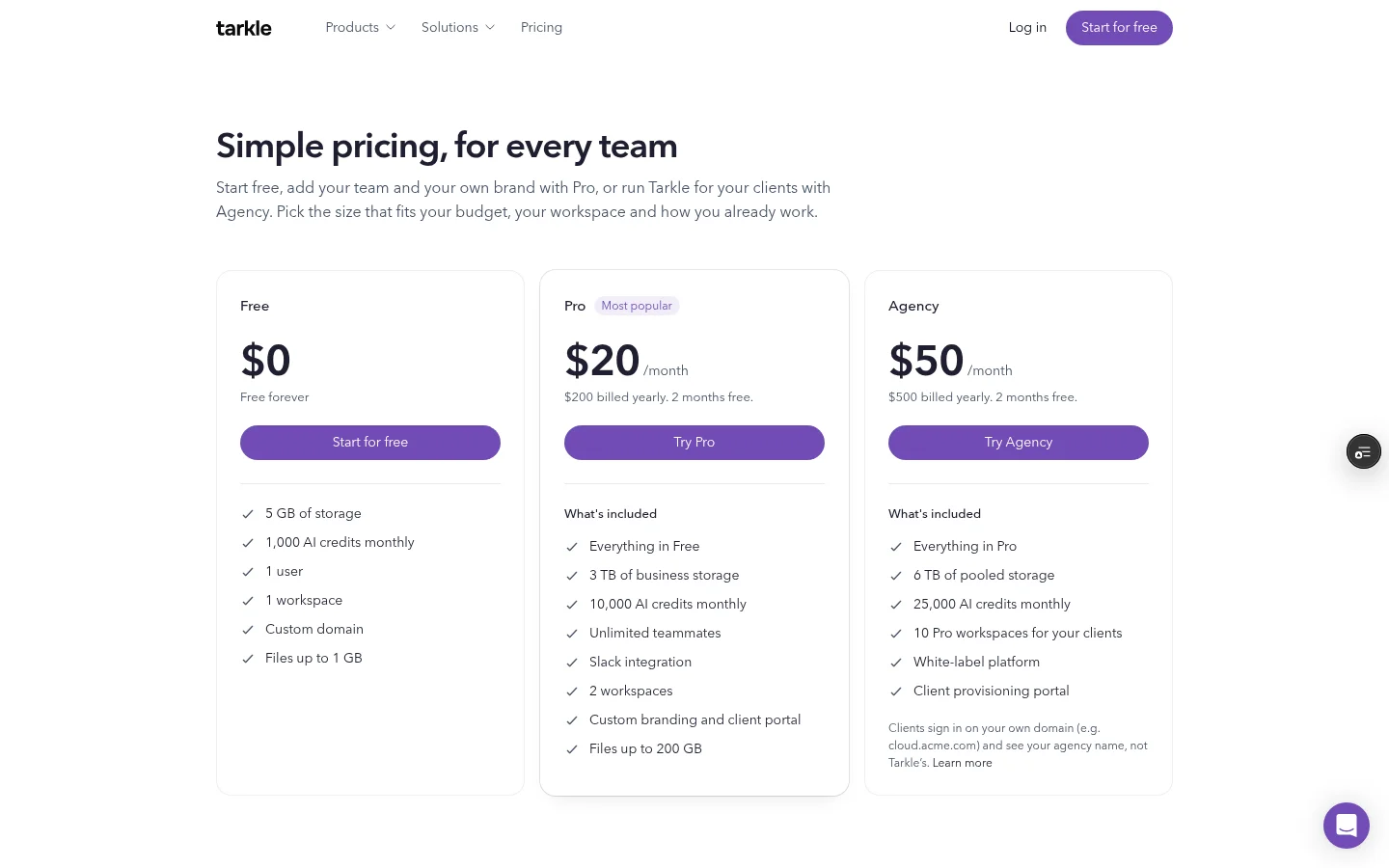
Tarkle’s Link expiration lets you set a date after which a transfer or request link stops working. For a file transfer, the expiration-date help article explains where to set the date during transfer creation. After that date, the transfer link no longer opens the transfer. The pricing page lists a password and expiry date on Free, Pro and Agency, so a small team can consider this control while choosing a plan.
This is a practical way to make the end of a share explicit. It does not replace a review of links already in circulation: inventory older shares separately, then decide whether to leave them open, set an appropriate end date where available, or disable the transfer.
Put the expiry date in the client message and your inventory. That gives the recipient and your team the same expectation.
Disable a transfer when plans change
A planned expiry date is useful for ordinary close-out. Sometimes plans change before that date: a share was sent in error, the project stopped, or the client no longer needs the link. In those cases, make a direct decision about the transfer rather than waiting for its scheduled date.
Tarkle lets you disable a transfer link in one click, and the link stops working straight away. Use that control for a transfer that should no longer open, then update your inventory with the reason and review date. For the steps to pause or enable a transfer, see how to pause or disable a transfer.
Keep the distinction clear in your notes: expiry is the end date you set in advance; disabling is the action you take when the transfer should stop working now. This makes it easier for teammates to understand why a link stopped opening and whether it was a planned close or a deliberate change.
Make the review a small recurring habit
A link inventory is useful only if someone returns to it. Choose a repeatable point in your project close-out, such as the moment you mark a share as sent. Review links that are due for a decision, check which projects remain active, and record what you did. Keep the routine small enough that the team will follow it.
A simple close-out record can contain:
Project and client name.
What the link was for.
The person responsible for the decision.
Whether it stays open, expires or is disabled.
The reason for keeping it active, if applicable.
The next review point.
Use the same terms across the team. “Keep open” means there is a recorded business reason. “Expiry set” means a date was chosen and communicated. “Disabled” means the transfer has been turned off. If a project needs a special arrangement, write that down rather than making the next person infer it from an old message.
For a broader sharing routine, see how to share documents with a client securely. That checklist covers decisions around a client share, while this audit adds a way to return to the links after the handoff.
What to remember about Tarkle
A good link audit starts with a clear inventory and a reason for every share that stays open. Tarkle supports expiry for transfer and request links. For a transfer, you can disable its link in one click so it stops working straight away. Start for free.