How to plan file sharing during email outages

File sharing during email outages works best when the file link and the channel used to deliver it are planned separately. Prepare an approved backup way to contact the client, check who should receive the files, and set up the transfer before anyone is under pressure.
Separate the file from the message
A file link gives a recipient a way to reach the files. It does not deliver the message that tells them where to find that link. If email is unavailable, your plan needs another approved way to send the link, such as a company-approved messaging channel or a phone call followed by an approved written message.
Decide which channels your team may use for client communication and what information belongs in each one. A short message can say that a file is ready and where to open it. Keep any access detail that should not travel with the link on a separate, approved route.
Make a continuity checklist before you need it
Write down the choices that would otherwise slow the handoff:
Name a backup communication channel. Choose a channel your team and the client can use, and confirm who on your team is responsible for sending the update.
Prepare the file link in advance. When a delivery is expected, make the transfer and check the link before an outage turns it urgent.
Verify the recipient. Match the client, project and intended recipients against your own records before sharing.
Agree how access details travel. If the transfer uses a password, decide separately how the recipient will receive it.
Record the fallback. Note which channel was used and what the recipient should do if they cannot open the link.

File sharing during email outages: prepare early
Choose the files, confirm they are the intended versions, and decide who should be able to open them. Make the transfer before the delivery becomes urgent, then copy its link into the place your team uses to coordinate the handoff. Keep a clear note of the client and project alongside it so a teammate can identify the right transfer.
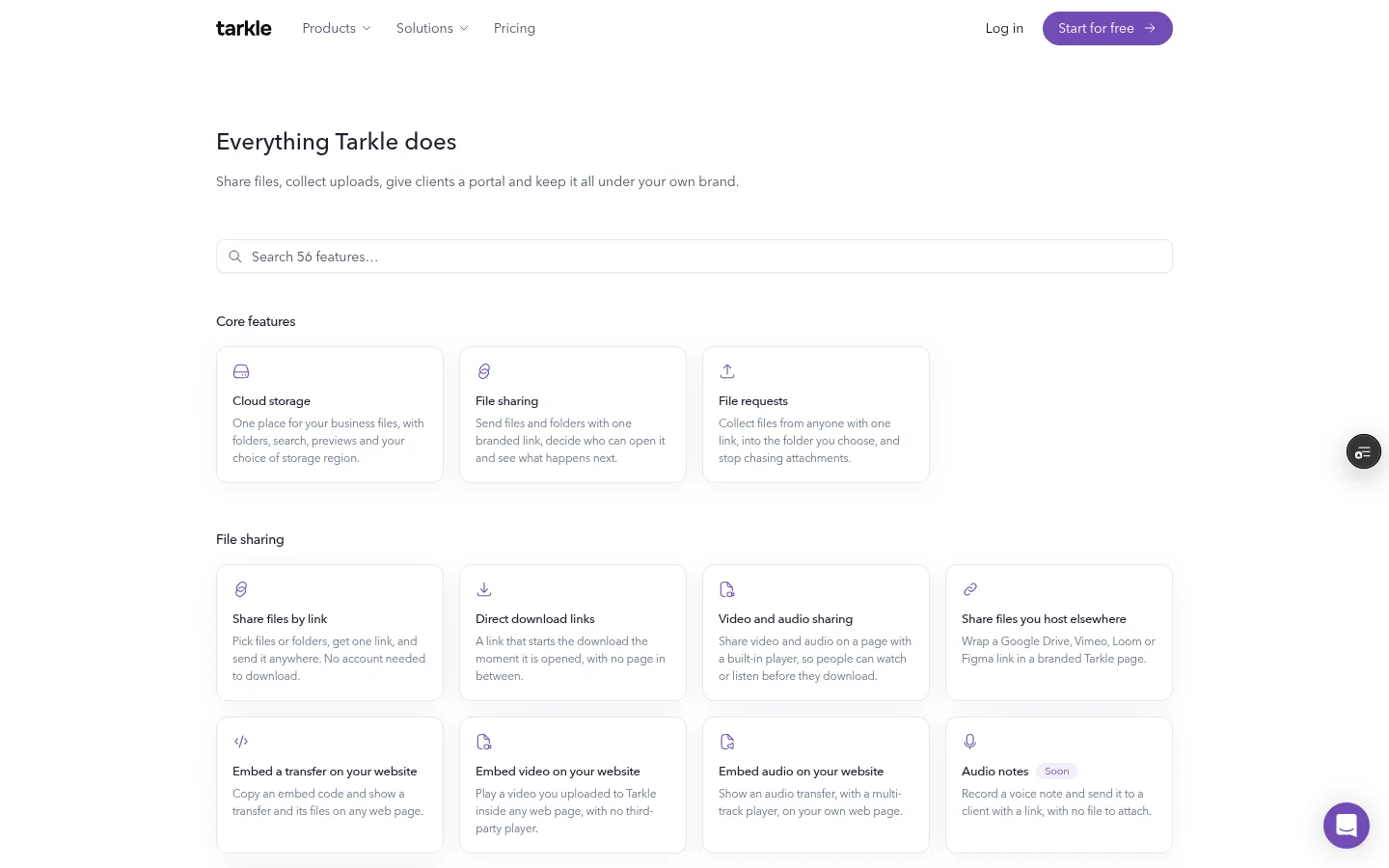
Tarkle's File sharing feature sends files and folders with one branded link and lets you decide who can open it. To prepare a transfer, open Transfers in the workspace, or follow the steps to create a file transfer. The transfer link is the file route; your continuity plan still needs a separate way to tell the client where to open it.
Create a small delivery note with the client name, project, intended recipients, link location and backup communication channel. Keep the note where the appropriate teammates can find it, not in an unapproved shared location.
Confirm recipients and access details
Before sharing, check the recipient list and the access setting against the sensitivity of the files and your team's rules. Avoid sending a link to a broad group just because it is faster. If the wrong person receives it, pause and follow your internal process rather than forwarding the link again.
When a password is part of the transfer, send the link and password separately through channels your team has approved. Tarkle's password and expiry guide says you can set a password and an expiry date when creating a file transfer. An expiry date can help make the intended access period explicit, but it does not replace checking the recipient or following your organization's handling rules.
Use the approved fallback during an outage
When the normal email route is unavailable, use the backup channel your team selected. Tell the client what the message is about, identify the project, and provide the file link through that channel if it is approved for the material. If you are sending a password separately, keep that step distinct and make the recipient clear.
Do not treat a file link as a promise that every part of a delivery will work during an outage. The sender still needs a way to reach the recipient, and the recipient needs a way to open the link. If either side cannot use the planned channel or the files are not accessible, follow your team's escalation process and confirm the next step with the client through an available approved route.
Avoid common continuity mistakes
Relying on the link alone: the link identifies the file route, not the communication route that gets it to the client.
Choosing a backup channel at the last minute: agree on the channel and who sends the notice before a delivery is urgent.
Sending access details together by habit: plan separately how a password will reach the intended recipient.
Skipping the recipient check: verify the person and project before sharing, especially when a team member is covering for someone else.
Assuming an outage is resolved: confirm that the client can open the files and keep using the fallback process until your normal route is usable again.
If your routine starts with email attachments, our Gmail attachment-limit guide covers the separate problem of files that do not fit an attachment. For outages, the core preparation is the same: decide how the client will hear from you, prepare the file route and access details, and verify the recipient before sending.
What to remember about Tarkle
Tarkle lets you share files and folders with clients through one branded link, with control over who can open it. Prepare the transfer in the workspace and keep the communication channel as a separate part of your continuity plan. Start for free.